 Dispatch
Getting started
What Dispatch is
A markdown writing app for macOS.
Dispatch is a native Mac app for writing pieces and getting them out. It is built in Swift, SwiftUI and AppKit — no Electron, no web view. There is a list of what you are working on, and there is the page you are writing on. No sidebar, no tabs.
Plain files, all the way down
Every piece is a plain .md file in an ordinary folder. By default that folder is called Dispatch and sits in iCloud Drive; you can point the app at any folder instead. There is no database and no proprietary container.
A piece’s status, its tags, whether it is starred and an optional word-count goal live in a small block at the top of the file. Anything else you put in that block is left alone. If Dispatch went away tomorrow, your writing would still be a folder of files any editor can open.
Markdown you can see
The editor styles markdown as you type — a heading looks like a heading, bold looks bold — while the file on disk stays plain markdown. The markers stay hidden rather than flickering in and out around the caret. See Markdown as you type.
Getting it out
A destination is a place you publish: a Substack, a WordPress admin, an email composer. Publishing copies the piece to the clipboard and opens that destination in your browser, where you paste. Dispatch stores no account and no password for any of them — that session belongs to the browser. See Destinations.
Where the controls are
Almost nothing sits on screen. Formatting, publishing, filing, navigation and most settings live in the action bar, reached with ⌘K. What is on the page is the writing.
Start with Your first piece.
Your first piece
Start writing, and where the file lands.
Press ⌘N. A blank piece opens with the caret already in it — there is nothing to name and no template to pick. New, at the top right of the list, does the same thing.
The first line becomes the title
Dispatch takes the title from the first line of prose. Change that line and the title changes with it. A piece that opens with an image or a page break is titled by its first words instead, not by the image reference.
Until there is a title the piece is listed as Untitled, and its file is named after the moment it was made — Note 2026-08-21 0930.md. Once you have written a first line the file is renamed to match. A rename never overwrites: a second piece with the same title becomes (2) rather than replacing the first.
Nothing to save
There is no Save button and no ⌘S. Dispatch writes the file a moment after you stop typing, and saved appears at the foot of the window. It saves again when you leave the piece and when you quit.
If a save cannot happen — the folder is not writable, iCloud Drive or Dropbox is not available yet — a message stays on screen until a save succeeds or you dismiss it. It does not fade on its own. Anything typed while it is showing exists only in memory, so copy it somewhere safe before quitting.
The line under the editor
It counts your words and names the length the piece has reached: empty, social, short or long-form. Set a target and it counts toward that instead — see Word-count goals.
Where the file lands
In your library folder, alongside everything else: by default Dispatch in iCloud Drive. Images you insert are copied into an attachments folder beside it.
A new piece starts with the status Inbox and sits at the top of the front page. Press esc to leave the editor and go back to the list.
The front page
Only your recent pieces show, and why they age off.
The list Dispatch opens on is called Writings, and it does not show everything you have written. It shows the pieces you edited most recently: the newest few large, the next few small under a rule. ⌘K sits at the top left as a reminder, New at the top right.
Three large and three small by default. In Settings, under Writing, Featured takes 1 to 5 and Below them takes 0 to 5.
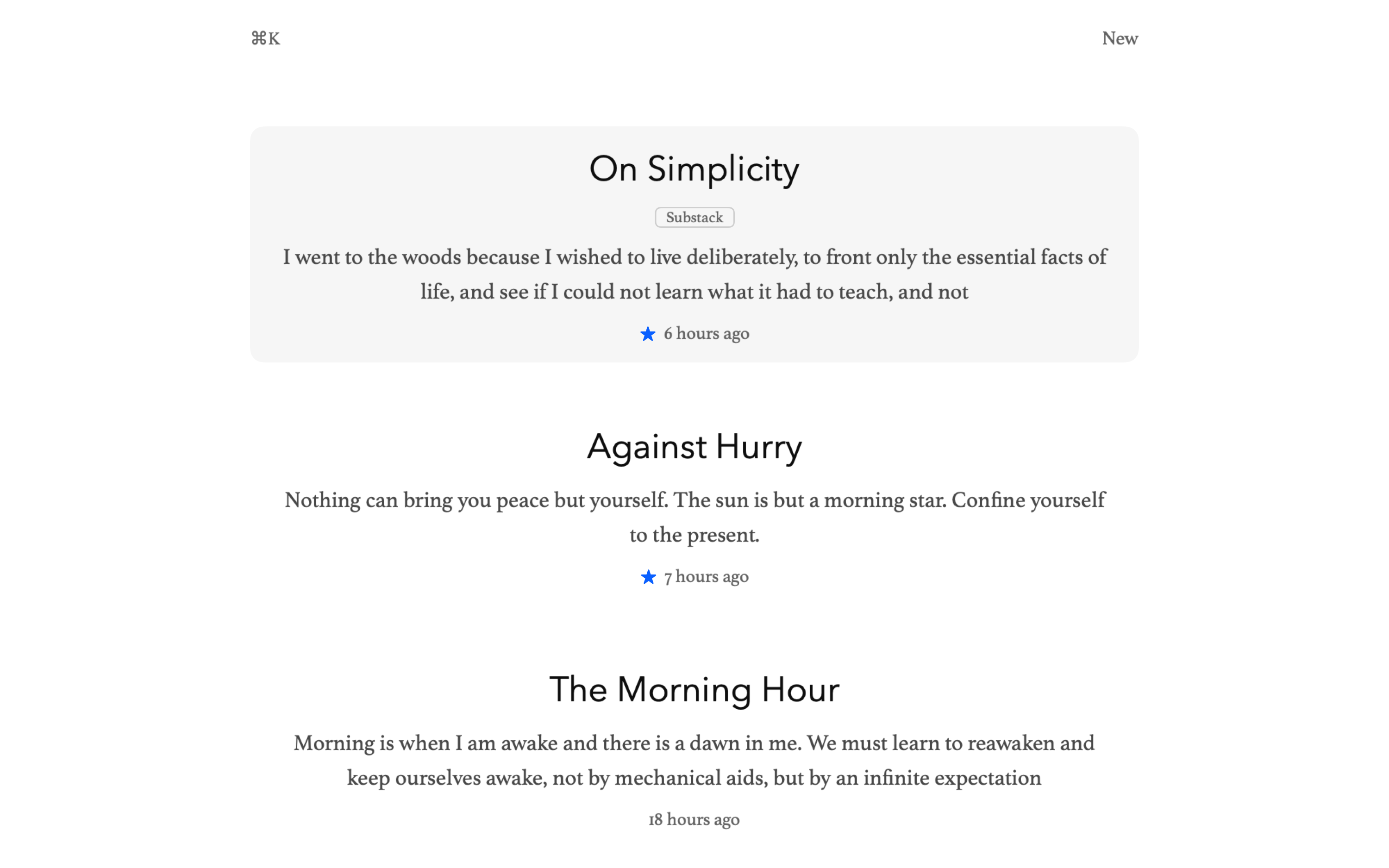
Neither number goes higher on purpose. A front page that empties itself is what gets pieces finished; one that grows without limit is a list of everything.
What is not here
A piece leaves the front page when you give it a status that takes it off — Published, Not Now or Done — or when it is archived. Anything still in progress but older than the front count moves to More. None of that deletes anything. See Status.
The links at the foot
Below the list, one line for each place there is something to see:
- STARRED — pieces you are holding onto. See Starring.
- MORE — active pieces beyond the front count
- PUBLISHED — pieces marked as having gone somewhere
- DONE — finished with, no destination named
- NOT NOW — set aside for later
Each appears only when it has something in it. Archive and Trash never appear here; both are in the action bar.
Moving around
The arrow keys run down the pieces and carry on through the links beneath them. Return opens the piece under the cursor, or follows the link.
| Key | Action |
|---|---|
⌘N | New piece |
↑ ↓ | Move the cursor |
return | Open, or follow the link |
esc | Back one step — clears a filter, then returns to Writings |
The action bar
⌘K reaches every action in the app.
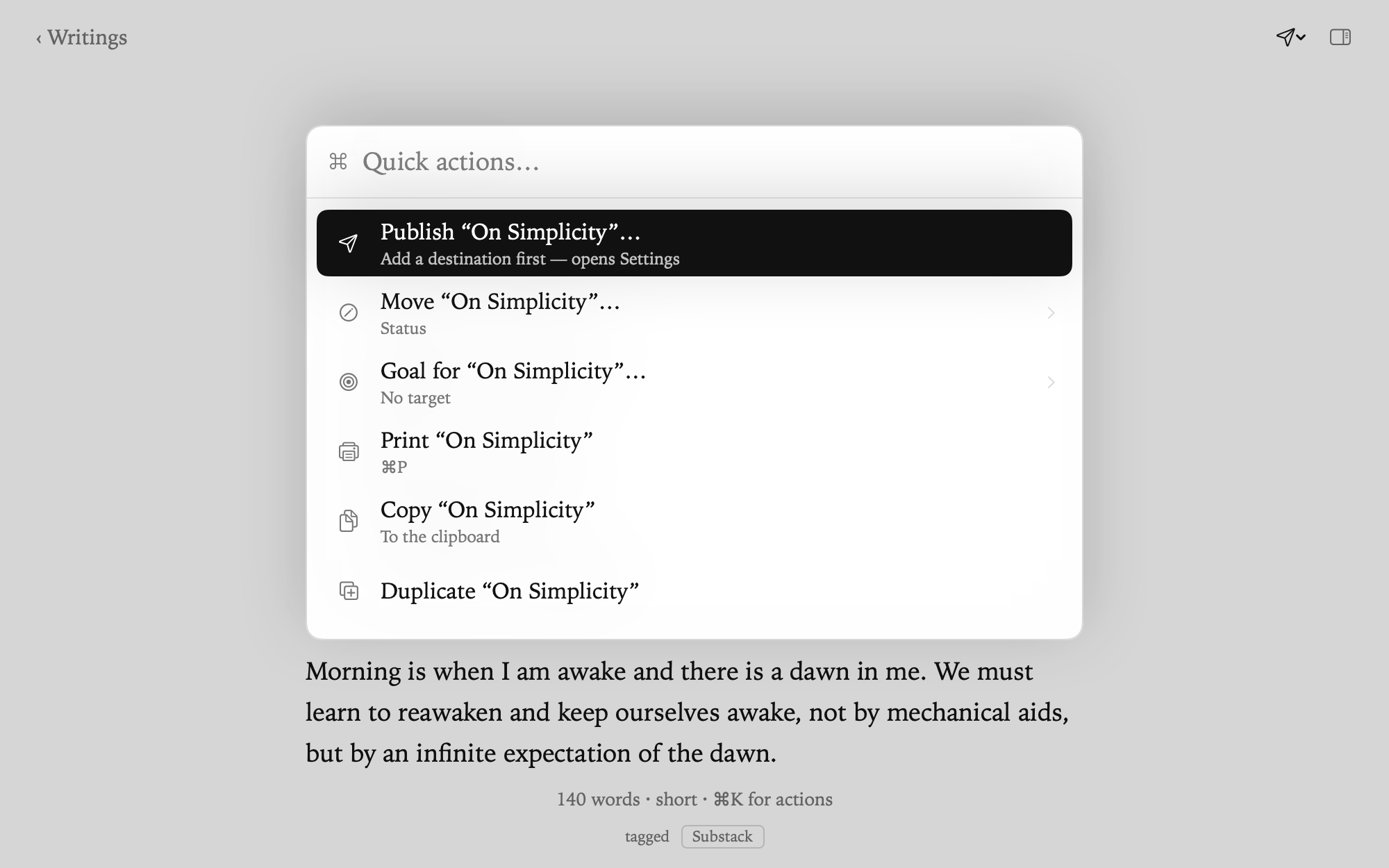
Press ⌘K anywhere in Dispatch. A search field opens with everything the app can do listed under it. It is Quick Actions… in the File menu as well.
Type to narrow the list. The search reads each entry’s name, its second line, and terms that are never shown — “favourite” finds Star, “zen” finds Focus Mode — and it tolerates a trailing s. Arrow keys move, Return runs the highlighted entry, esc closes.
Two levels
An entry with a chevron opens a second level instead of firing. Publish, Mark Published, Move, Goal, Layout, Theme, Text Size, Editor Width and Typeface all work that way, which keeps the top level short — one Publish…, not seven destinations. esc steps back out of a group before it closes the bar.
Search still reaches inside the groups when nothing at the top level matches, so typing a destination’s name finds it without opening Publish first.
It acts on one piece
Either the piece you have open, or the row the cursor is on in the list. The name is written into the entry, in quotation marks, so there is no doubt which piece is about to be archived or published.
What else is offered depends on where you are. In the editor there are heading levels, lists, quote, centre, link, image and page break. In the list there is filing, filtering and navigation. Creating a piece, jumping to one by title, the theme, the typeface, your licence and Settings are there either way.
Several destinations at once
Inside Publish, Tab gathers destinations rather than choosing one, and Return then fires all of them in turn. See Multi-publish.
Typing / at the start of an empty line in the editor opens the same bar — see Slash commands.
Before you buy
What the trial covers, how the licence arrives, and where your writing actually lives.
Dispatch is free for 30 days, complete, with no account and no card. After that it is $29, once.
The trial counts days you used it
Not days on the calendar. A day is recorded when you open the app, and 30 of those ends the trial. Leaving Dispatch alone for a fortnight costs you nothing.
For the last five days a line at the top of the window says how many are left, with buttons to enter a key or buy one.
What stops, and what does not
When the trial ends, editing, publishing, printing and formatted copy stop until a key is entered.
Reading, opening, exporting, revealing a piece in Finder, moving your library and every control in Settings keep working. Save a Copy of Everything, in the action bar, keeps working too. Your writing is plain markdown in a folder you chose, and the app is never the thing standing between you and it.
The key
Buying opens a checkout in your browser. The key arrives by email and starts with DISPATCH-.
In Dispatch, press ⌘K, choose Licence…, paste the whole line from the receipt and press Activate. The label in front of it and any line breaks are fine. One key activates 5 Macs. Keys issued before the app was renamed start with WRITER- and are still accepted.
Where your writing actually lives
In Dispatch in your iCloud Drive by default, or any folder you point the app at. One plain .md file per piece, with pictures in an attachments folder beside them, and a small prowriter.json holding your destinations. There is no database, and Dispatch sends no copy of your writing anywhere.
See Trial and licence for activating and deactivating a Mac, Privacy for what leaves your machine, and Where your files live for the folder itself.
Getting started Writing Organizing Publishing Reference Account
The help docs and changelog content is AI-written.