 Dispatch
Publishing
Destinations
The places a finished piece can go.
A destination is a name, a type, and an address — either a web address or an app on this Mac. Dispatch ships with none. You add the ones you publish to.
Adding one
Open Settings with ⌘,, choose Destinations, then + Add destination.
Type a known platform in the name field — Reddit, Bluesky, Medium, Kit, Buttondown — and the type and composer link fill themselves in. Or paste a URL and the name and type fill in from it. Choose App… points the destination at an app on this Mac instead; the picker opens in your Applications folder.
An address must be http, https or mailto; a bare example.com gets https:// in front of it. Destinations are stored beside your notes in prowriter.json.
The four types
Social, Email, Website and Newsletter. The type sets the icon and decides how the piece is copied: every type keeps its formatting except Social, which copies as plain text. See Copying and exporting.
Publishing to one
Press ⌘K and choose Publish — the entry names the piece you are on — then pick the destination. The paper-plane menu at the top of the editor holds the same list.
Publishing copies the piece and opens the destination. It does not paste: these composers focus their own title field as they load, so a blind ⌘V lands in the wrong box. Click into the body and paste. The confirmation says where.
Web destinations open in Brave Browser when it is installed, and in your default browser otherwise. Dispatch signs in to nothing and holds no password of yours — you publish with whatever session the browser already has.
What publishing records
Once the destination opens, the piece’s status becomes Published and the destination’s name is written onto the piece as a tag. That tag is the record of where it went. If the destination cannot be opened, nothing is recorded and the message says to check its address in Settings.
Publishing the piece you have open runs Proofreading first.
Mark Published in the action bar writes that same status and tag without opening anything — for a piece that went out some other way. Choosing a destination already tagged removes the tag instead. The same checklist is in the inspector (⇧⌘I), and under Published to when you right-click a piece in the library.
Multi-publish
Several destinations, one keystroke.
Open Publish from the action bar and the destinations you have configured are listed. Press ⇥ to gather the highlighted one into a batch. The field reads ⇥ add · ⏎ open until something is gathered, then counts what you have: ⏎ open 4. Return fires the whole batch.
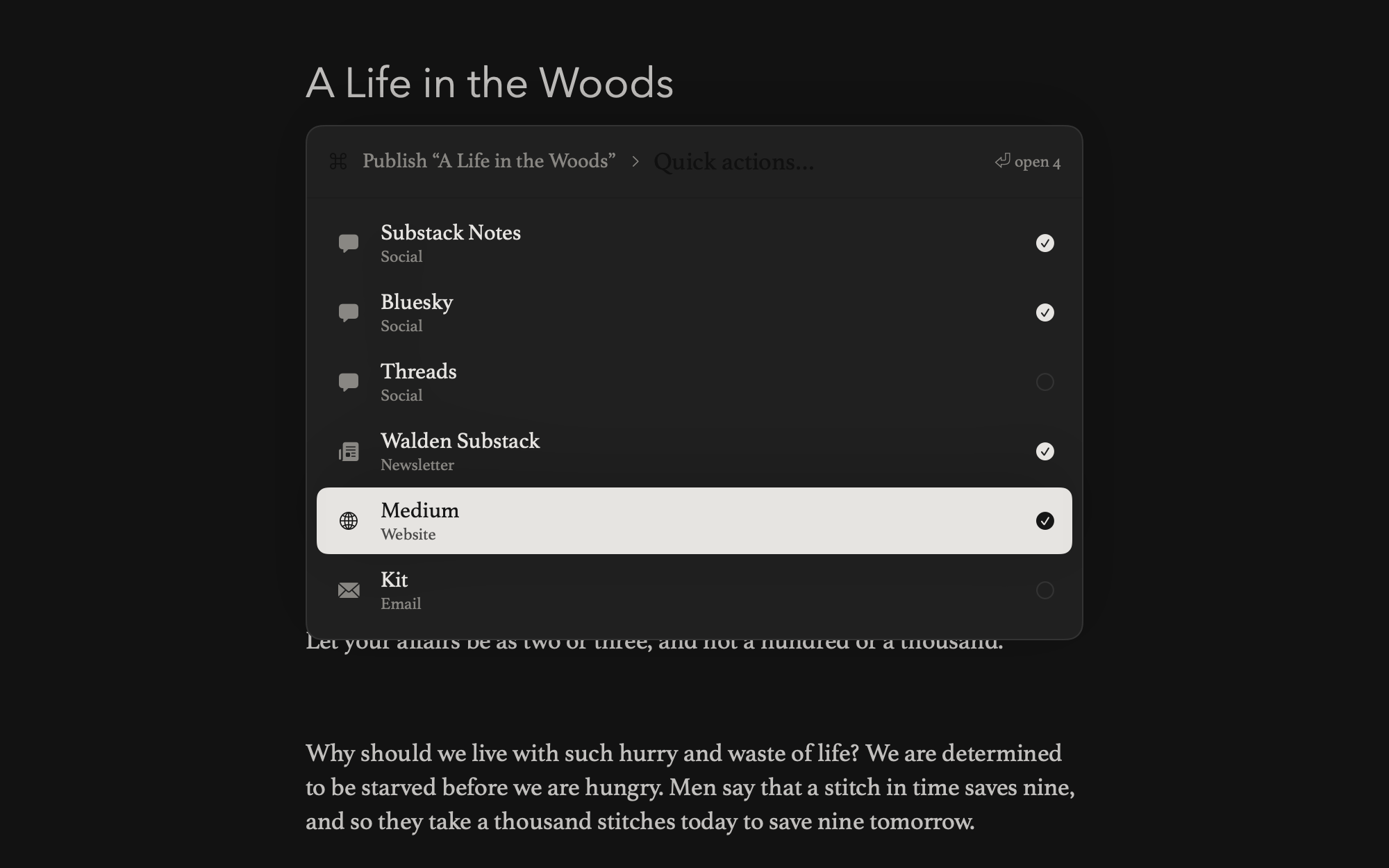
The piece goes on the clipboard once, and every composer opens in its own window, staggered a fraction of a second apart so the browser does not drop any of them. Paste into each in turn.
One clipboard serves the batch. If any destination in it keeps formatting, the clipboard carries formatted text with a plain-text version underneath, and a Social destination takes the plain version — so a newsletter and a social post can go out together without either arriving wrong.
Every destination in the batch is tagged onto the piece and its status becomes Published, the same record a single publish writes. The confirmation names the destinations and how many windows opened.
The proofreader runs once, before the first window.
Keys
| Key | Action |
|---|---|
⌘K | Open the action bar |
⇥ | Add the highlighted destination to the batch |
⏎ | Publish to everything gathered |
esc | Step back out of the list |
Return with nothing gathered publishes to the highlighted destination alone.
Printing
Paper, with the markdown markers stripped.
⌘P prints the piece you are writing, or the one your cursor is on in the library. Print in the action bar does the same thing.
What comes out is the piece as writing, not as markdown. The #, the **, the backticks are gone, and headings, bold, italic and lists are set as real type. Images print as images. A page break you inserted breaks the page there.
Type and paper
The printed page uses the typeface you write in, at the Text size on paper set under Settings → Writing → Layout. That is a separate number from the size on screen, because what is comfortable to write in is not what belongs on a sheet of paper. Margins are one inch on every side. The sheet is white with black ink whichever theme you use.
Paper size follows the layout you are in: Letter prints Letter, A4 prints A4, and Immersive leaves your printer’s own default alone. This is why Page view predicts what the printer does — the two are laid out to the same measurements.
Page numbers
Off by default. Settings → Writing → Printing → Page numbers turns them on, centred in the bottom margin. A single-page handout reads better without one.
The print panel
Dispatch shows the standard macOS print panel as a sheet on the window, so the printer, copies, range and PDF options are all where you expect them.
Afterwards
A piece that has been printed and used has not been published anywhere. Move → Done takes it off the main list without claiming a destination for it. See Status.
Printing needs a licence once the trial ends. Reading, opening and revealing files never do. See Trial and licence.
Copying and exporting
Formatted copy, HTML, and the file itself.
Copy
Copy in the action bar puts the whole piece on the clipboard with its formatting intact: HTML for anything that accepts HTML, and a plain-text version underneath for anything that does not. Paste into a web editor and headings, bold, italic, links and lists arrive as themselves rather than as markdown characters.
Images kept in your library are embedded in that HTML, so they travel with the paste instead of pointing at a file nobody else can reach. Only images inside the library folder are embedded, up to 25 MB each and 50 MB for one piece. Anything past that is left as a reference and will be a dead link wherever you paste it — publishing names the ones this happened to; copying does not.
Plain text
The plain-text version — the one a Social destination gets, and the one anything that refuses HTML falls back to — is stripped rather than converted. Headings lose their #, emphasis loses its markers, links become the words they were written on, and images come out entirely. Page-break markers are dropped from both versions.
The file itself
Every piece is already a .md file. There is no export step: the file on disk is the piece, and any other app can open it.
- Reveal in Finder — shows the file for the piece you are on. Right-clicking a piece in the library has the same item.
- Open Notes Folder — shows the library in Finder. See Where your files live.
- Duplicate — a copy of the piece in your Inbox, with the tags cleared.
Save a Copy of Everything
Copies the entire library into a new dated folder — Dispatch Backup 2026-08-21 1430 — inside a folder you choose. It refuses a folder inside your writing folder, checks that every file arrived intact, removes its own partial copy if one did not, and changes nothing in the library. Plain markdown in a synced folder is portability, not a backup: a bad write reaches every device in seconds.
Formatted copy stops when the trial ends. Opening pieces, revealing them in Finder and Save a Copy of Everything do not. See Trial and licence.
Getting started Writing Organizing Publishing Reference Account
The help docs and changelog content is AI-written.